Finding Asis Check-In Message

Having Trouble Finding Your ASIS Check-In Message?

Your ASIS Physical Therapy self check-in link is sent to you by text message approximately 30 minutes before your appointment.

If you don’t see the text, don’t worry! Your iPhone may have automatically moved the message to a different folder.

Follow the steps below to find it.
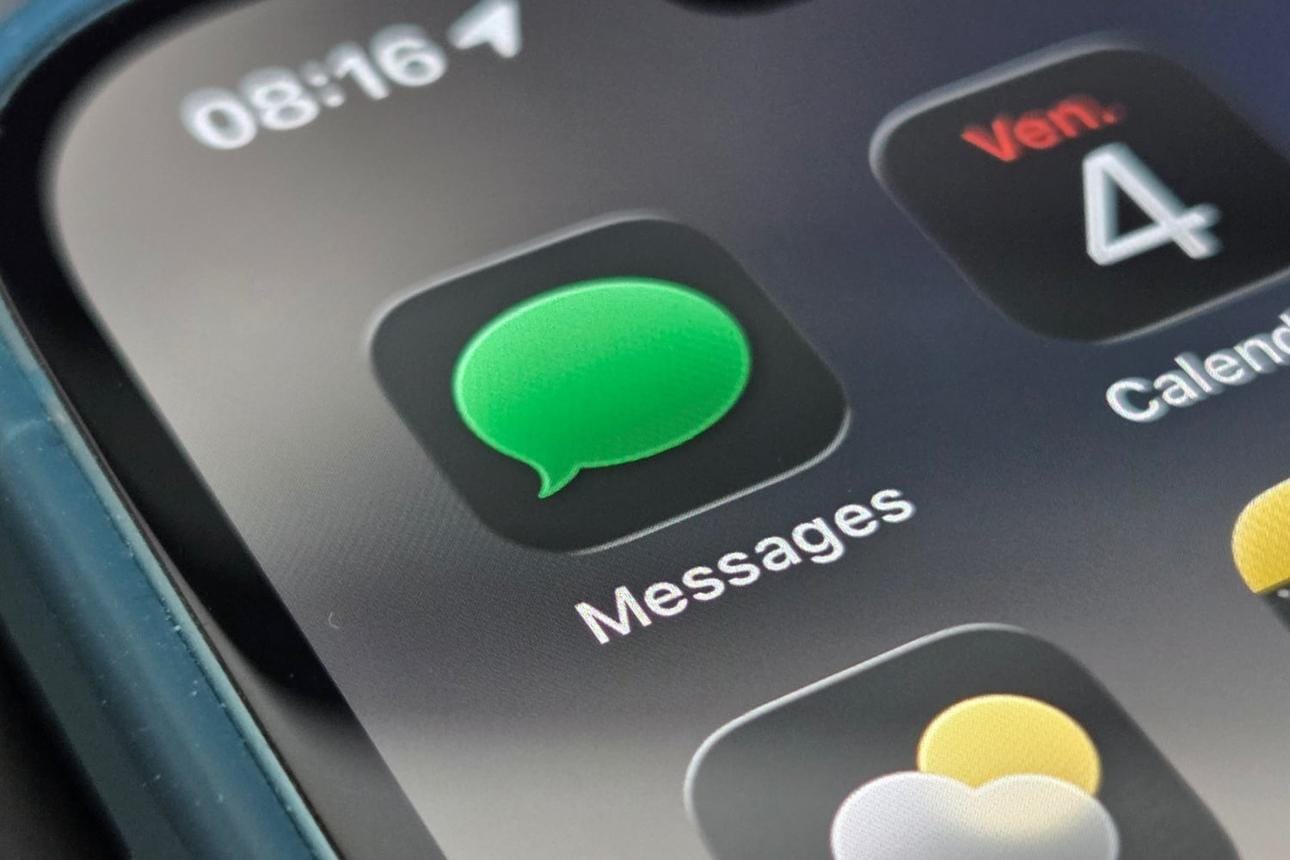
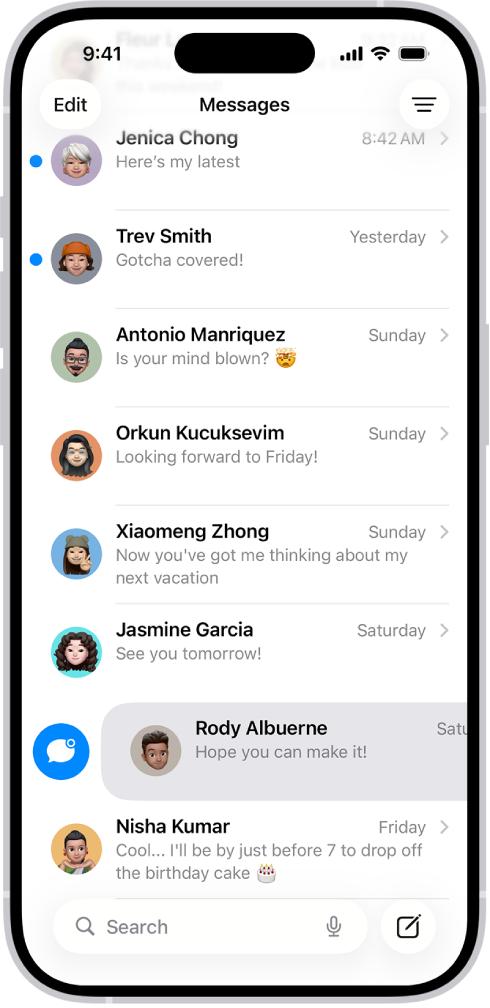
First: Open your Messages app

Look for the green Messages icon on your iPhone and tap it.

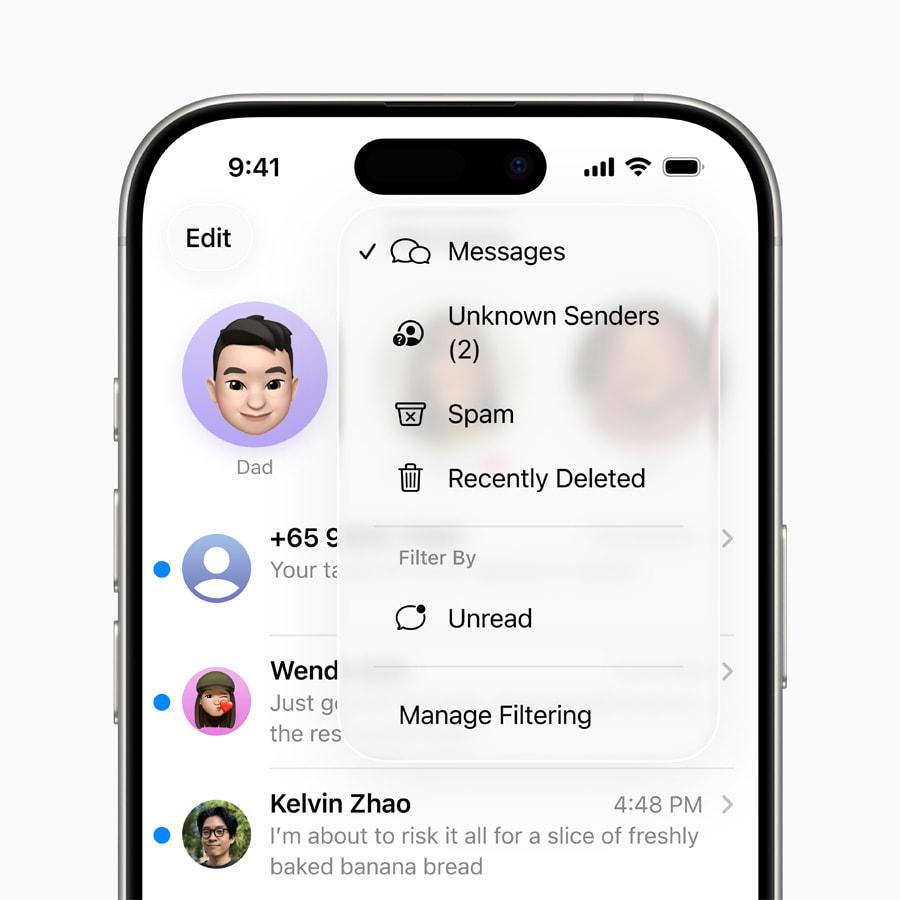
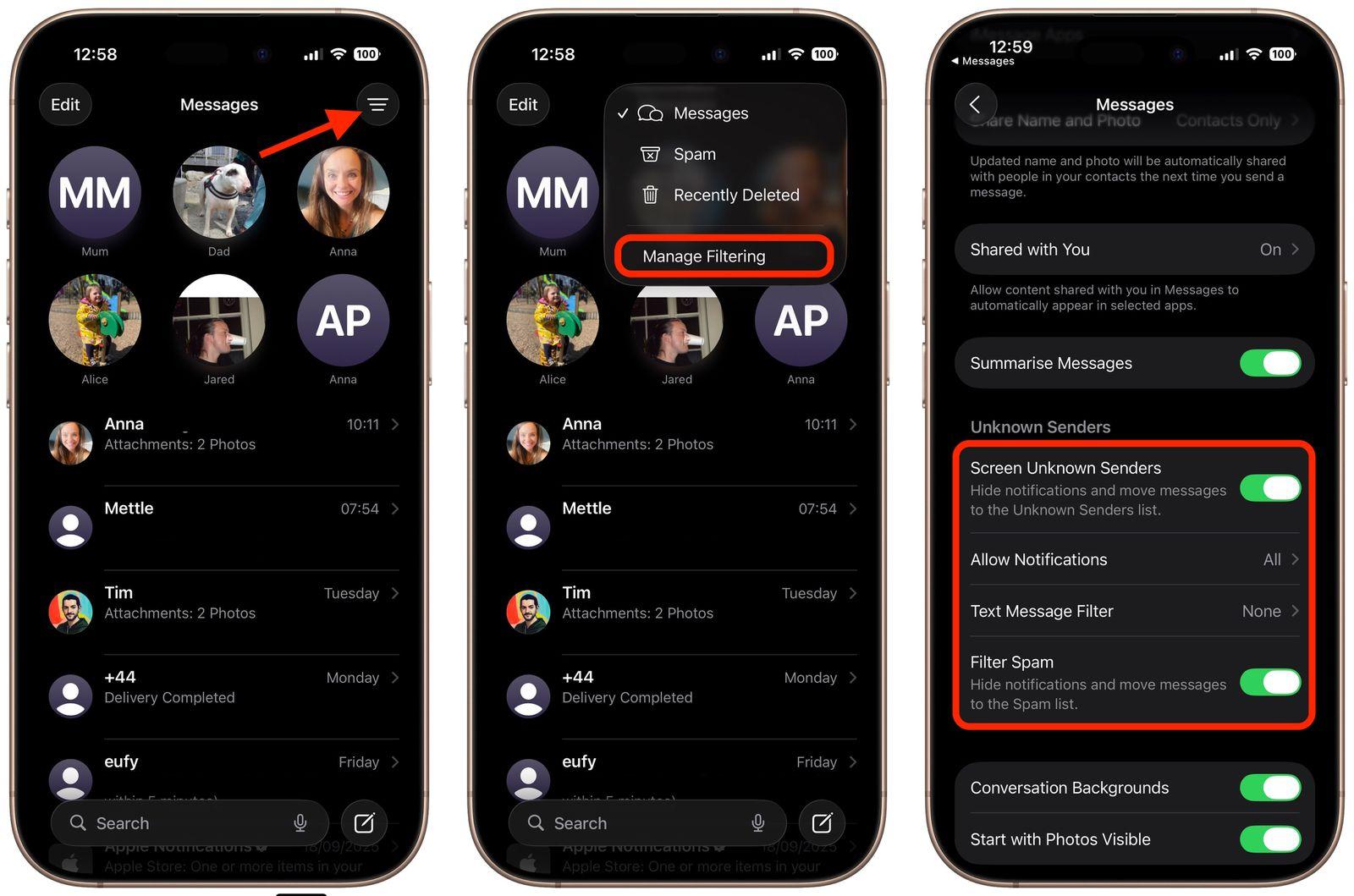
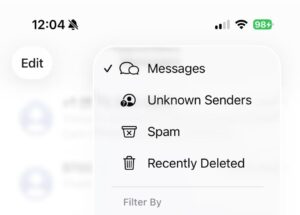
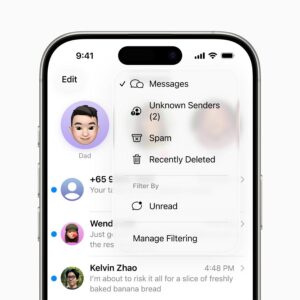
Step 1: Tap “Filters”

When you are looking at your list of text messages, look in the upper-right corner.

Tap Filters.

Tip: The Filters button looks like three horizontal lines.

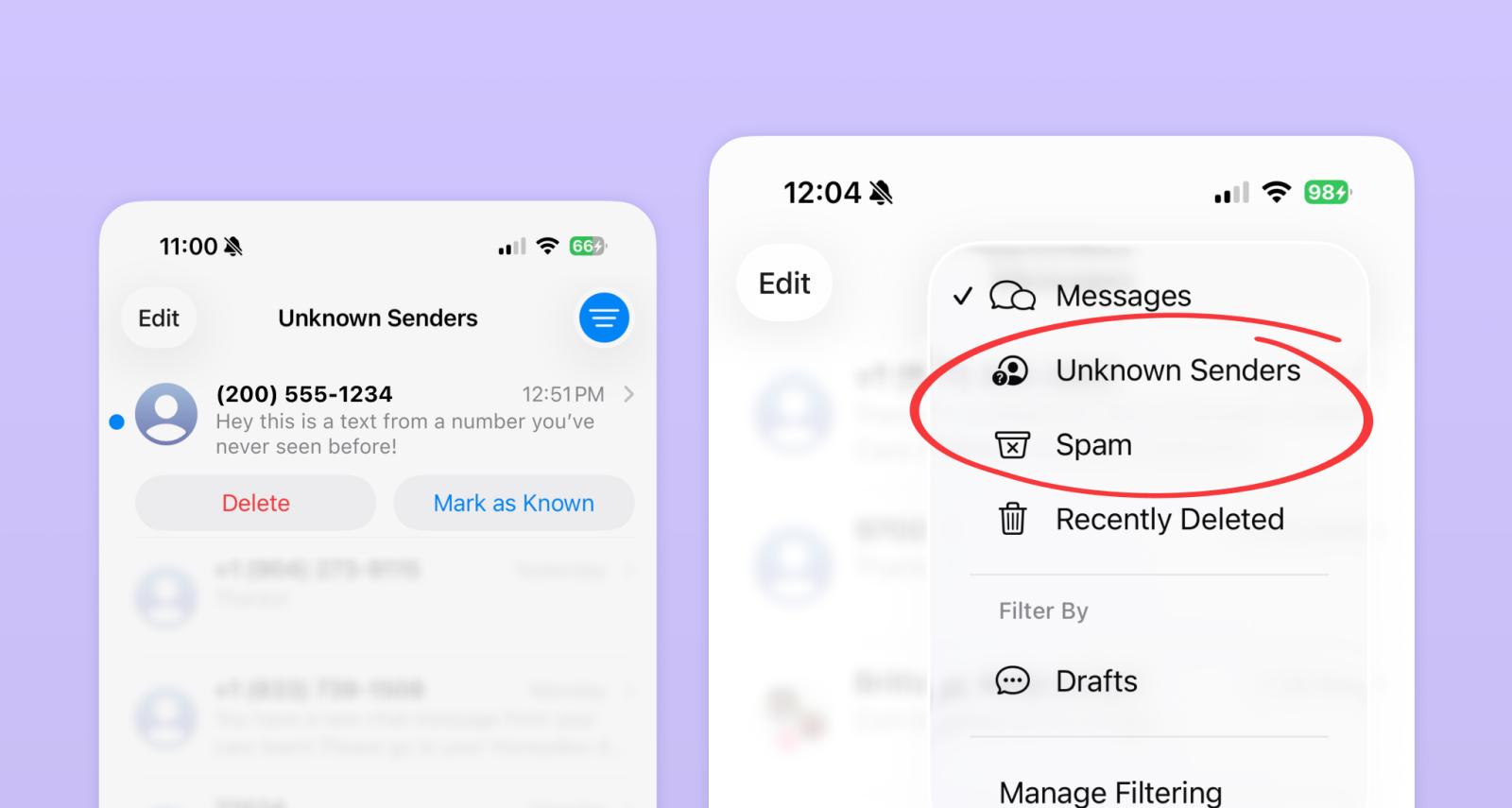
Step 2: Check “Unknown Senders”

After you tap Filters, you may see several choices.

Tap:

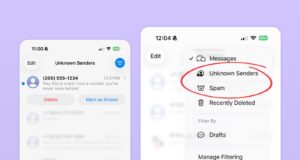
Unknown Senders

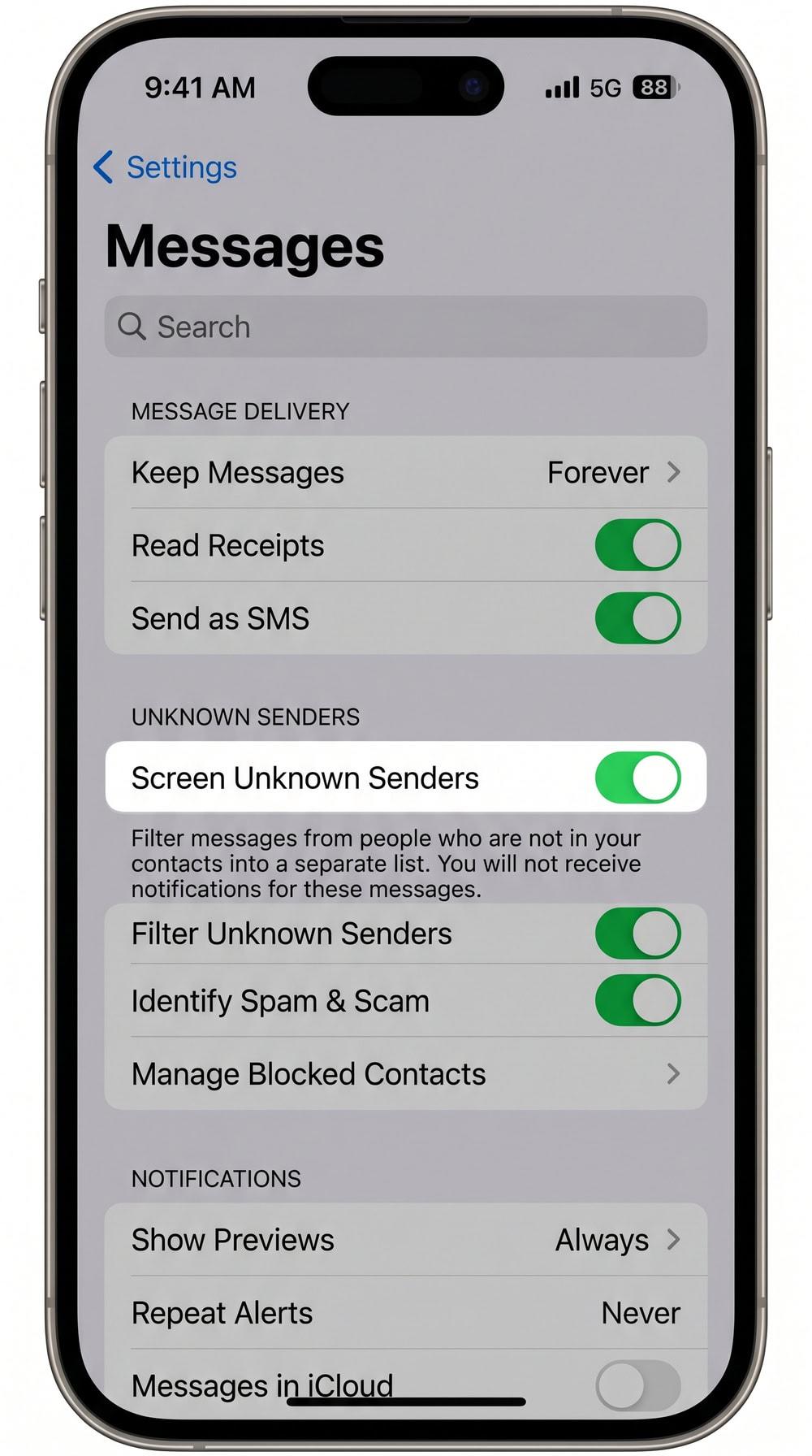
Messages from phone numbers that aren’t recognized by your iPhone can be placed here instead of appearing in your normal message list. Apple Support

Look through the messages for one from ASIS Physical Therapy.

If you find the ASIS message:

Open it and look for Mark as Known.

Tap Mark as Known.

This tells your iPhone that ASIS is a legitimate sender and helps future messages appear in your regular Messages list. You can also add the number to your Contacts.

Step 3: Check your “Spam” folder

If you don’t see the ASIS message under Unknown Senders, go back to the Filters menu.

Then tap:

Spam

Your iPhone can automatically identify suspected spam and move those messages out of your normal conversation list.

If you find the ASIS message in Spam:

Open the message.

If the message is from ASIS Physical Therapy and you were expecting it, tap:

Not Spam

Then choose Move to Messages if your iPhone gives you that option.

The conversation should then return to your regular Messages list.

Step 4: Check your blocked contacts

If you still can’t find the message, it’s possible that the phone number sending the message has been blocked.

Go to:

Settings → Privacy & Security → Blocked Contacts

Look through the list to see whether the ASIS number has been blocked. UW Product

Important: Don’t worry if you aren’t comfortable changing these settings. Our front desk team can help you when you arrive.

When should I receive my check-in text?

Your ASIS self check-in message is normally sent approximately 30 minutes before your appointment.

If you are checking your phone before that time, you may not have received it yet.

Still Can’t Find Your Check-In Text?

That’s okay! You don’t need the text message to check in.

You can:

✓ Check in using one of the self check-in kiosks in the clinic

OR

✓ Let our front desk team know when you arrive

We’re happy to help!

ASIS Physical Therapy Team

Having Trouble Finding Your ASIS Check-In Message?

Your ASIS Physical Therapy self check-in link is sent to you by text message approximately 30 minutes before your appointment.

If you don’t see the text, your Android phone may have automatically moved it to a Spam & blocked folder.

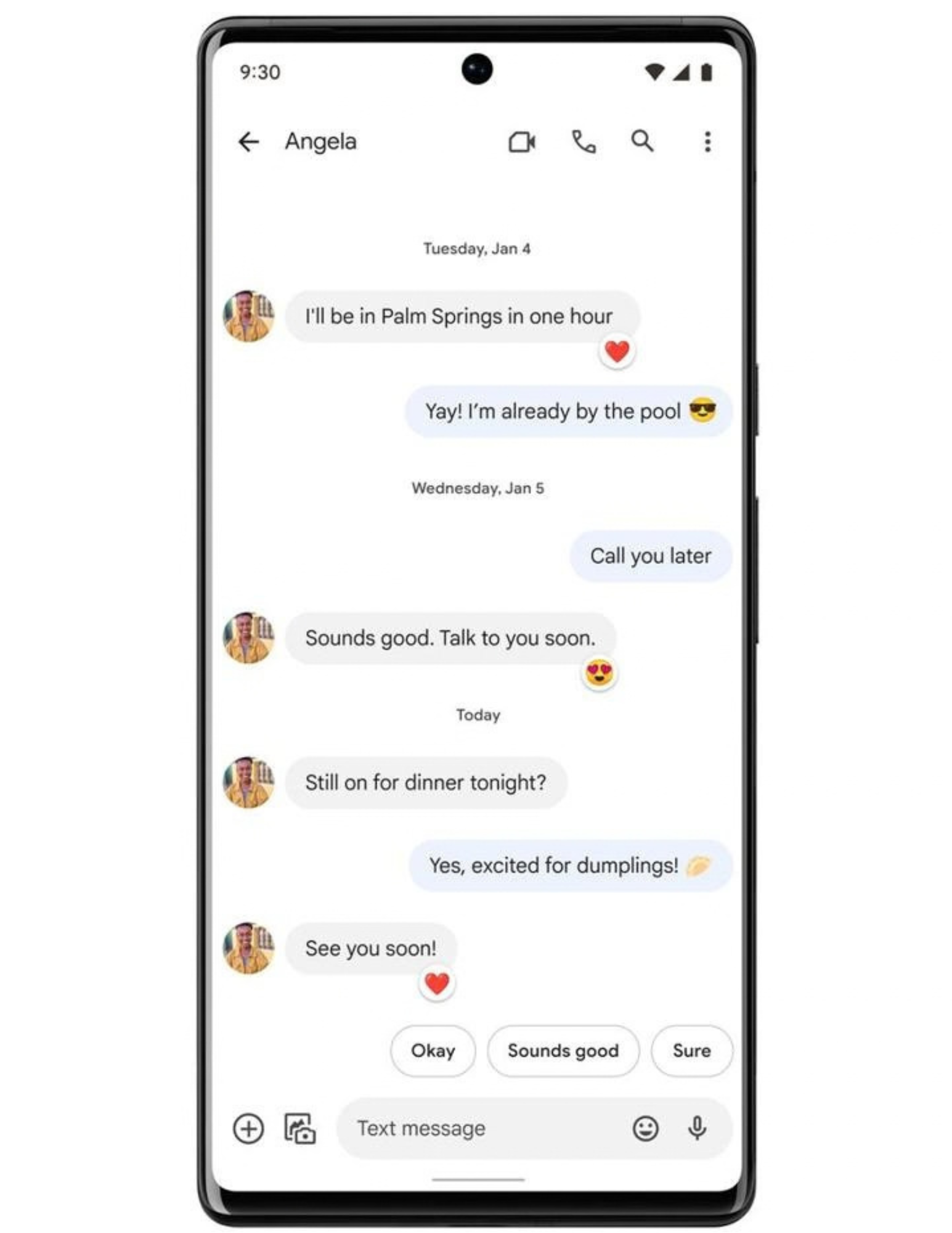
Android phones can look different depending on the manufacturer. The instructions below are for Google Messages, which is the most common Messages app on Android phones.

First: Open your Messages app

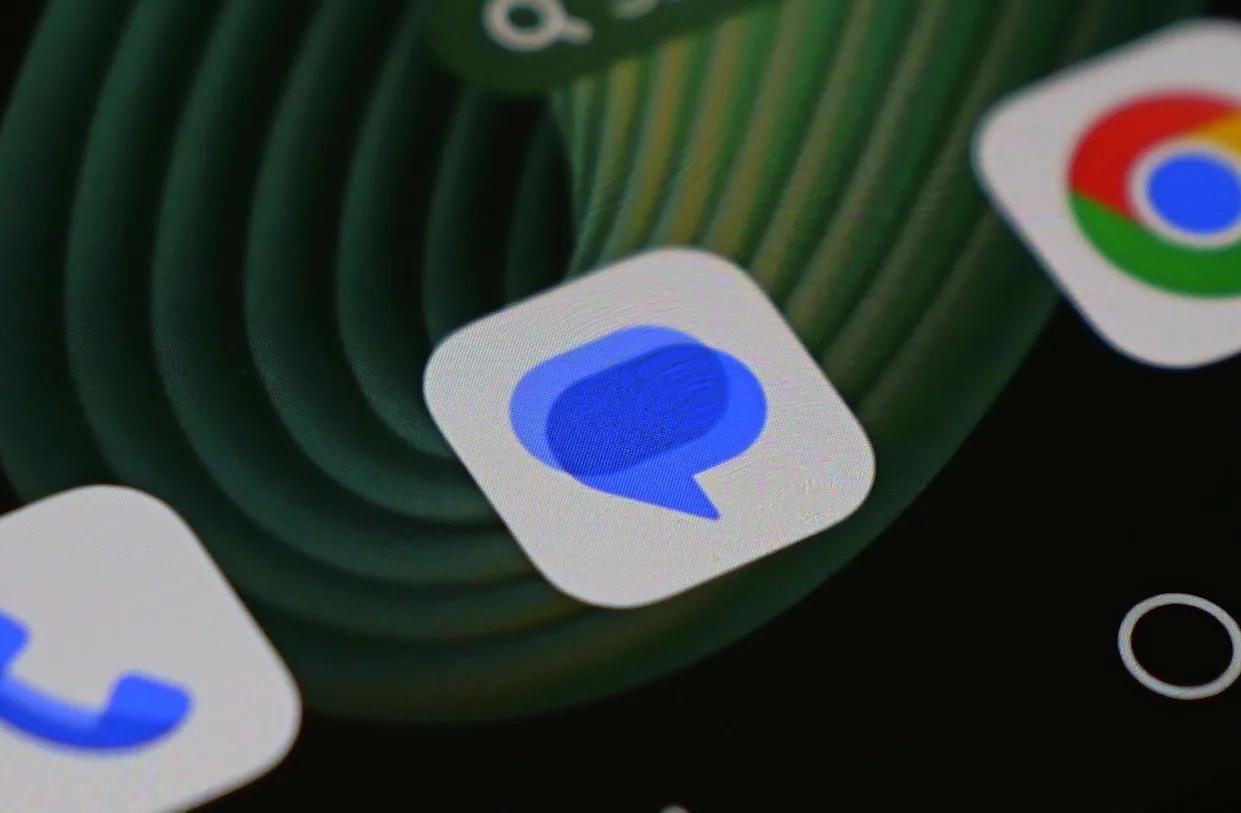
Look for the Messages app on your phone.

The icon may look similar to this:

Tap Messages to open your text messages.

Step 1: Look for the ASIS message

First, scroll through your normal messages.

Look for a message from:

ASIS Physical Therapy

If you don’t see it, don’t worry. It may have been moved to your spam folder.

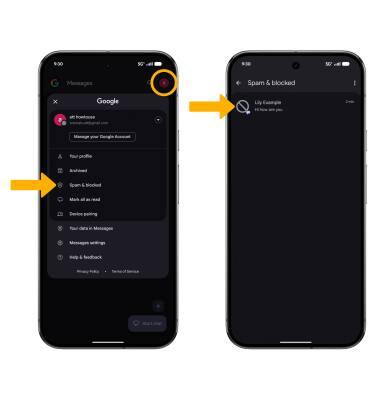
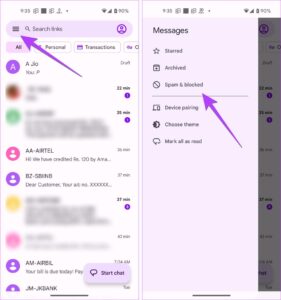
Step 2: Open “Spam & blocked”

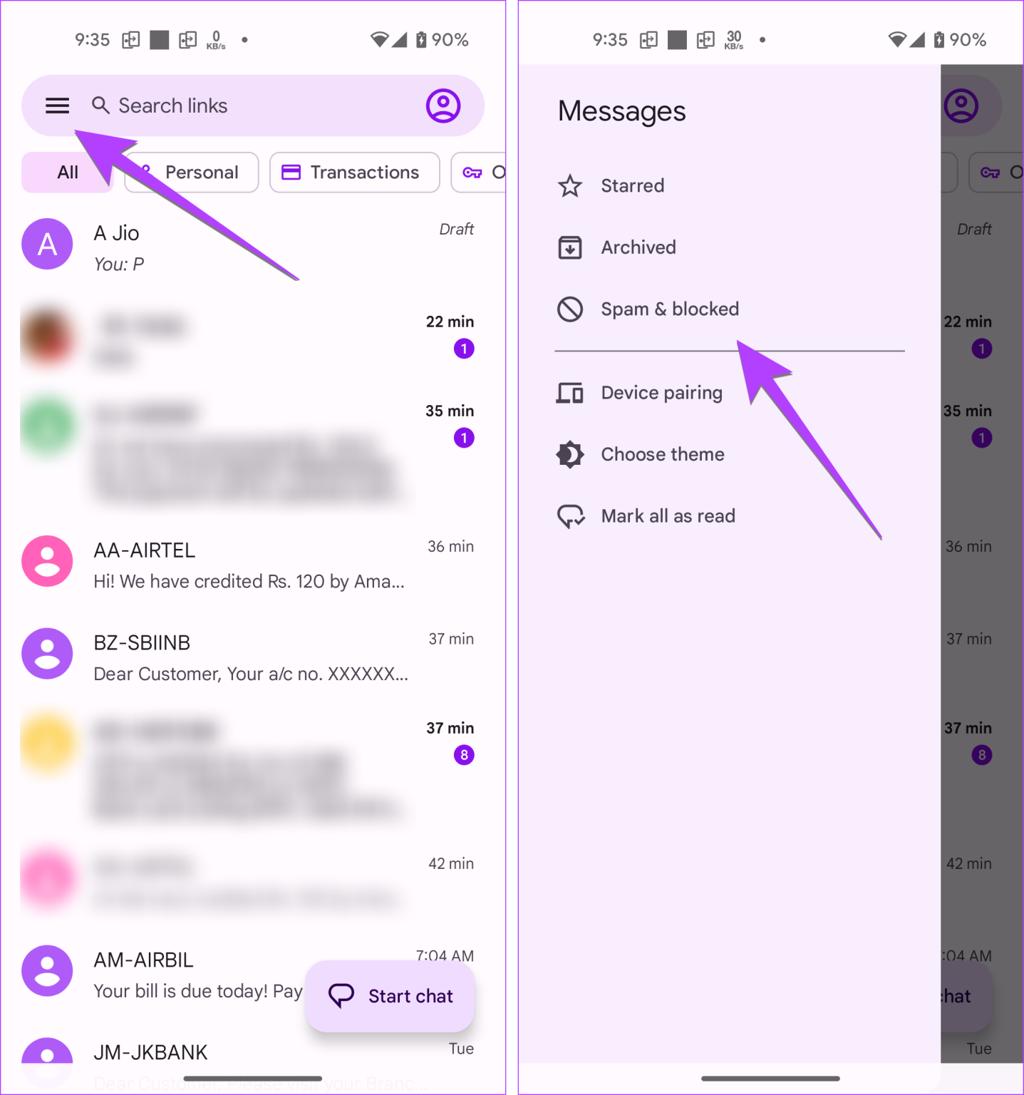
At the top of the Messages app, look for your profile picture, initials, or account icon.

Tap it.

A menu should appear.

Look for:

Spam & blocked

Tap Spam & blocked.

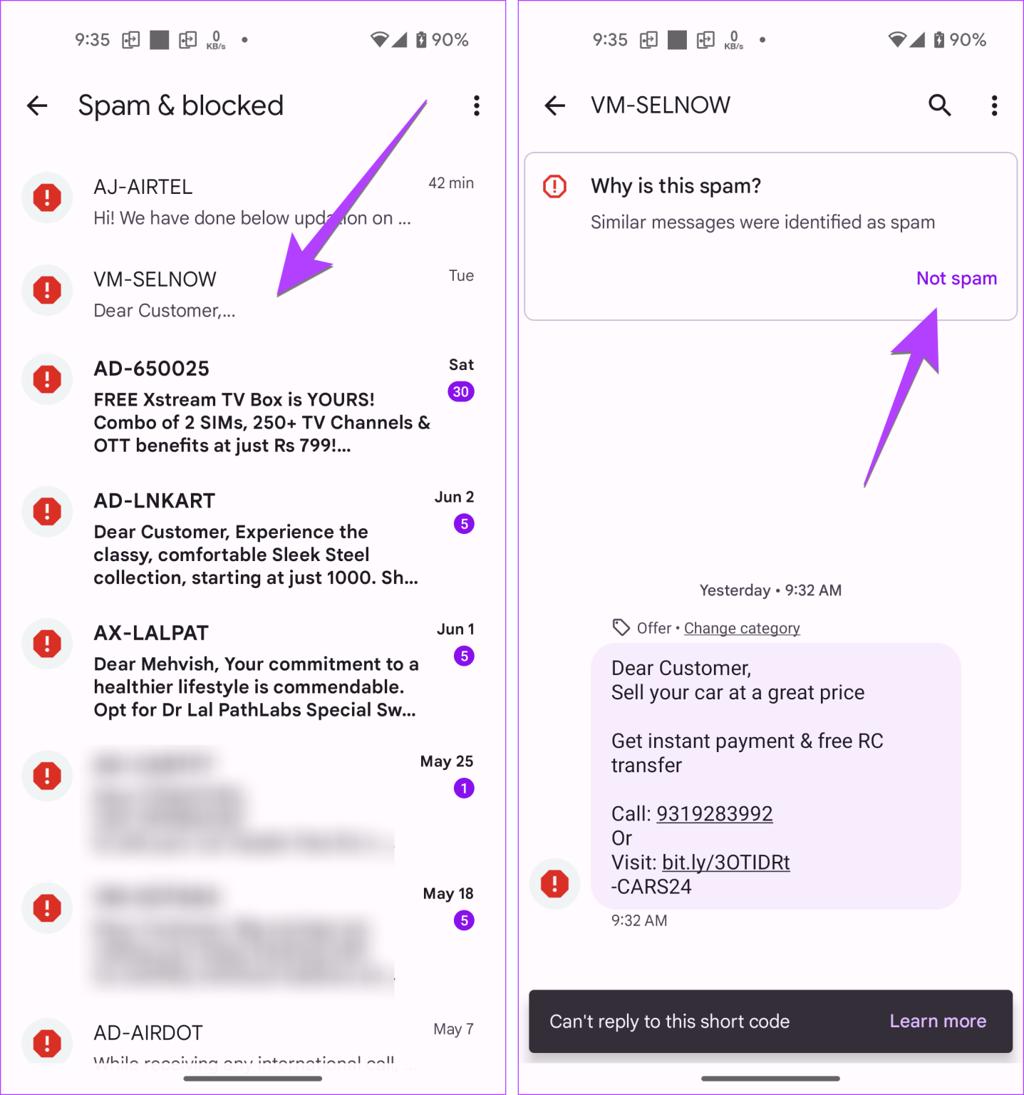
Google Messages places messages that have been reported or identified as spam in this folder.

Step 3: Look for your ASIS message

Look through the messages in Spam & blocked.

If you see a message from ASIS Physical Therapy, open it.

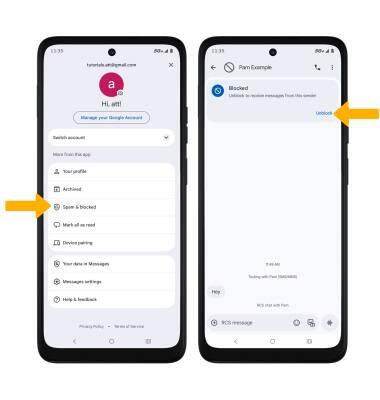
If the message is legitimate and you were expecting it, look for an option to Unblock or Not spam.

The exact wording can vary depending on your phone and version of Android.

Google’s current instructions say that when a conversation is unblocked, the conversation is moved back to your regular Messages screen.

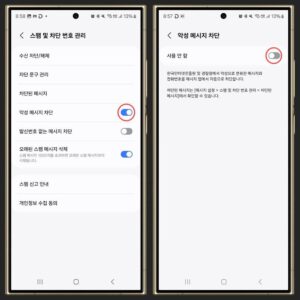
Do You Have a Samsung Phone?

If you have a Samsung Galaxy phone, your Messages app may look different.

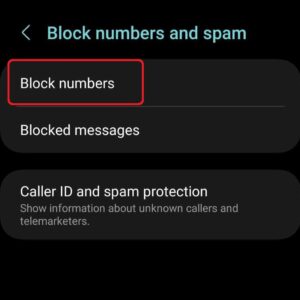
Samsung Messages has its own spam and blocked-message settings.

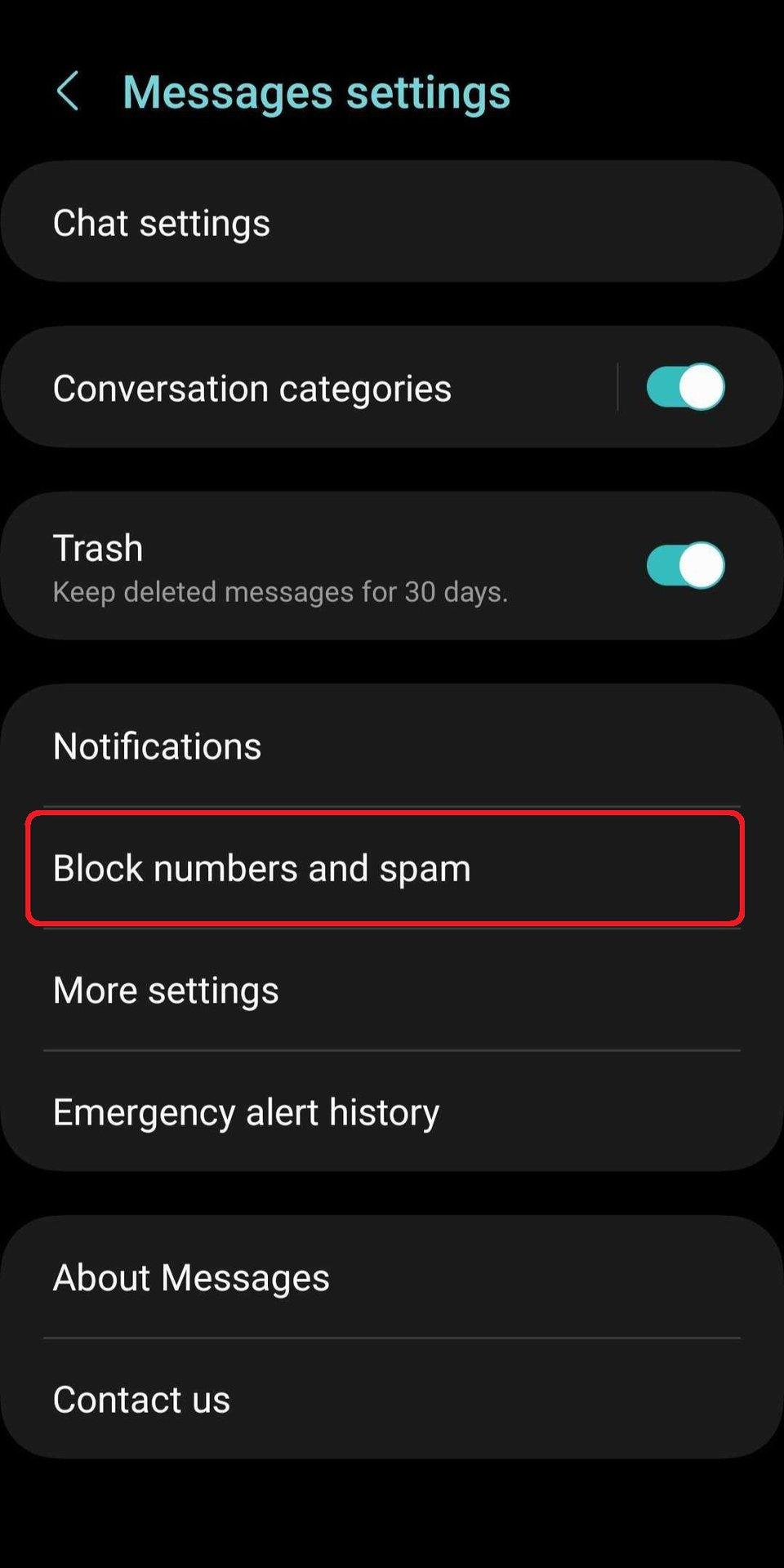
Open:

Messages → three dots ⋮ → Settings → Block numbers and spam

From there, you may see an option for Blocked messages.

When should I receive my check-in text?

Your ASIS self check-in message is normally sent approximately 30 minutes before your appointment.

If you are checking your phone before that time, you may not have received it yet.

Still Can’t Find Your Check-In Text?

That’s okay! You don’t need the text message to check in.

You can:

✓ Check in using one of the self check-in kiosks in the clinic

OR

✓ Let our front desk team know when you arrive

We’re happy to help!

ASIS Physical Therapy Team